 Task for Spaces
Support
Version 1.4.0. Task is a small macOS menu-bar app. It gives each Space a meaningful name, keeps the name visible in Mission Control, and shows the current Desktop number in your menu bar.
Getting started
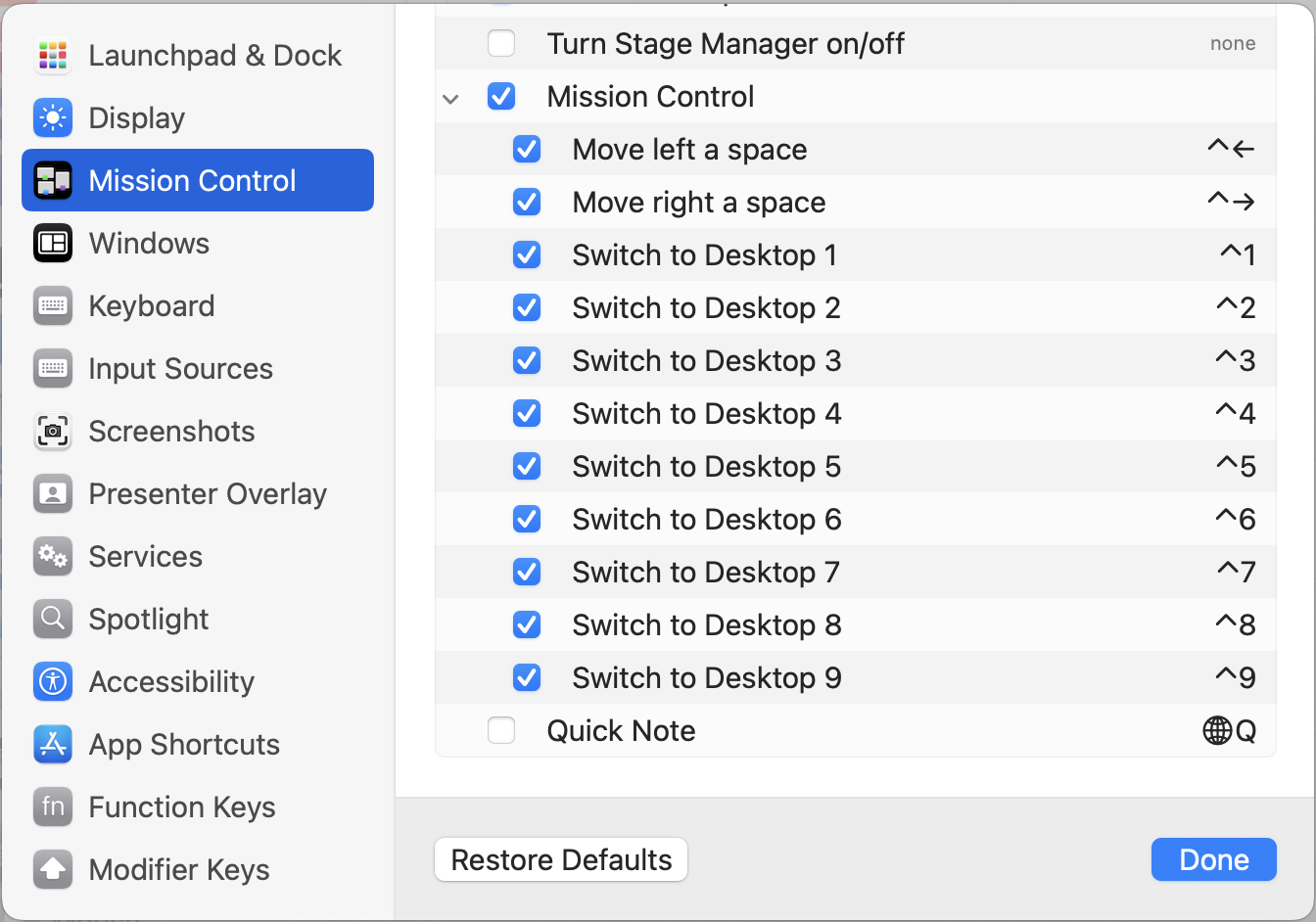
To keep Task’s Desktop numbers in sync with Mission Control, open System Settings → Desktop & Dock → Mission Control and turn off:
- Displays have separate Spaces
- Automatically rearrange Spaces based on most recent use
Task stays in the menu bar. It does not appear in the Dock.
The tag-shaped menu-bar icon shows the current Desktop number. It stays blank in fullscreen and Split View: macOS does not give those Spaces a Desktop number, so Task cannot name them.
Name your Spaces
Click the Task menu-bar icon. The current Space’s name is already selected in the text field at the top, ready for you to type over it. Task saves the new name when you press Return, click elsewhere, or close the menu.
To edit several names at once, choose Configuration…. Task opens its local plain-text file in your default editor. Add one Space name per numbered line:
# Task configuration
# Task manages this file. You can edit it by hand, but when Task
# saves it, it reformats the file and removes custom comments and
# unknown settings.

# The splash is the large card Task draws in the middle of the
# screen. It appears briefly when you move to a Space and while
# Mission Control is open. The name in the Spaces bar is separate;
# none of the four settings below affect it.

# How long the splash stays on screen after a Space change, in seconds.
# 0.0 turns it off, 5.0 is the longest.
splashDuration = 1.5

# Show the splash over the Desktop while Mission Control is open.
# Names in the Spaces bar stay visible either way.
splashInMissionControl = true

# Pick a splash size: huge, big, normal, small, or mini.
# huge is the default.
splashSize = huge

# Place the splash on a 3x3 grid, read like a page:
#   1 2 3   top left, top center, top right
#   4 5 6
#   7 8 9   bottom left, bottom center, bottom right
splashPosition = 5

# Give each named Desktop a stable color
differentiateWithColor = true

# Show the first word of the Desktop's name in the menu bar
# instead of its number
iconAsSpaceNames = false

# Desktop names
1 = Website refresh
2 = PROJ-4127
3 = Customer research
4 = Invoices

# Per-Desktop colors and custom menu-bar tags. Without a custom
# tag, the icon shows the first word of the name. Custom tags keep
# Desktops that start with the same word easy to tell apart.
1.color = #E8756A
1.tag = SITE
2.color = #2F80ED
The file is stored locally at:
~/Library/Containers/com.500nits.Task/Data/Library/Application Support/Task/spaces.txt
Task leaves the file alone when it launches or when you switch Spaces. It writes to the file when you rename a Space, release the splash-duration slider, toggle Differentiate with Color, refresh the workspaces, or after it verifies a numbered-Desktop reorder in Mission Control.
Task treats spaces.txt as its source of truth. Whenever it saves the file, it keeps the last duplicate entry, removes custom comments, unknown settings, and custom formatting, and drops entries for Spaces you do not have. Every current Space gets a name; Task writes a blank or missing one back as Task N.
Reorder your Spaces in Mission Control and Task automatically moves each name and color to the Space’s new Desktop number.
Names in Mission Control
Each named Space shows its name in the middle of its thumbnail in Mission Control’s Spaces bar. Task uses the full available width at a fixed text size. Long names wrap to a second line; if a name still does not fit, Task shows overflown.
The splash appears while Mission Control is open and briefly after you move to another Space. It stays hidden the rest of the time, including in Application Windows, so it does not get in your way.
Differentiate with Color
Click the Task menu-bar icon and choose Differentiate with Color. Task spreads colors around the full spectrum from a random starting point, so neighboring Spaces are easy to tell apart.
Task saves the colors in spaces.txt as N.color entries, so they survive relaunches. Turn the option off and back on to generate a fresh set. To pick your own colors, edit the file and use a three- or six-digit HTML hex value. Task saves it in the standard six-digit #RRGGBB format.
Splash size and position
The splash is the large card Task shows briefly when you move to a Space and while Mission Control is open. Three settings in spaces.txt control it. You can also change its size from the Task menu. To move it or hide it in Mission Control, choose Configuration… and edit the file. Open Mission Control to preview your changes.
These settings do not change the names in Mission Control’s Spaces bar. Those stay full size and centered, making them easy to read on the small thumbnails.
splashInMissionControl
Use true to show the splash over the Desktop while Mission Control is open, or false to hide it. Names in the Spaces bar stay visible either way.
splashSize
Choose huge, big, normal, small, or mini. Task scales the whole card without changing its shape. The size applies both when you switch Spaces and while Mission Control is open. The default is huge.
You can also use the five-stop Splash size slider next to the duration slider in the Task menu. The smallest size is on the left, and the label above the slider shows your current choice. If you edit the file instead, the slider updates the next time you open the menu.
splashPosition
Use a number from 1 to 9 to place the splash on a three-by-three grid, read like a page:
1 2 3   top left, top center, top right
4 5 6   left, center, right
7 8 9   bottom left, bottom center, bottom right
5, the center, is the default. The top row sits below Mission Control’s Spaces bar, and the bottom row stays above the Dock, so corner positions remain readable. Task ignores an unrecognized value or a number outside 1 to 9 and keeps the default instead.
Icon as Space Names
Click the Task menu-bar icon and choose Icon as Space Names. The tag will show the first word of the current Space’s name instead of its Desktop number.
The tag stays the same width, so the rest of your menu bar does not shift as you move between Spaces. If the text is too long, Task shortens it with an ellipsis. The tag stays blank in fullscreen and Split View because those Spaces have neither a name nor a Desktop number.
Using the first word can be ambiguous: ACME Rockets and ACME Anvils both become ACME. Give each Space a custom tag by adding N.tag next to its color in spaces.txt:
1 = ACME Rockets
2 = ACME Anvils
1.tag = ROCKETS
2.tag = ANVILS
Task uses a custom tag exactly as written, including spaces, and shortens it if needed. Remove the line or leave it blank to go back to the first word. The tag follows its Space when you reorder Spaces and disappears when you remove that Space.
Task saves this option in spaces.txt as iconAsSpaceNames.
Set the splash duration
Click the Task icon and use the Splash duration slider to control how long the splash stays visible after you move to a Space. Choose any value from 0.0 to 5.0 seconds. The default is 1.5 seconds. Setting it to 0.0 hides the splash when you switch Spaces but keeps it visible in Mission Control.
Task saves the value as splashDuration in spaces.txt when you release the slider. If the setting is missing or invalid, Task uses the 1.5-second default without changing the file.
When Task appears
Task shows a Space’s name:
- across its thumbnail whenever Mission Control is open;
- on screen for the splash duration when you move to that Space.
If you use multiple displays, Task shows the name on all of them.
Menu-bar controls
Task’s tag shows the current Desktop number, or that Space’s name when Icon as Space Names is on. Click the icon to:
- rename the current Space;
- turn Differentiate with Color on or off;
- turn Icon as Space Names on or off;
- set the splash duration and size;
- Refresh Workspaces to reread
spaces.txt, sync the names with your current Spaces, and show the current Desktop’s splash so you know it worked; - choose Configuration… to open
spaces.txtin your default text editor; - turn on Start at Login. This is always your choice; Task never enables it for you;
- open About Task or Quit Task.
Troubleshooting
The wrong name appears
Make sure both Mission Control settings listed above are off. Then check that the number in spaces.txt matches the Space’s position in Mission Control. Choose Refresh Workspaces to sync the two.
No name appears after editing
Names entered in the menu save when you press Return, click elsewhere, or close the menu. If you edit the full configuration, save it as plain text and put one name on each line in the form number = name. Then switch Spaces or choose Refresh Workspaces.
No name appears in Mission Control
Task only labels named Spaces that have a Desktop number. It does not label fullscreen or Split View Spaces. If a numbered Space is missing its name, choose Refresh Workspaces.
Task is not visible
Look for its numbered tag-shaped icon in the macOS menu bar. If the menu bar is crowded, macOS or a menu-bar manager may have hidden it.
Contact support
Email [email protected] for help. Include your macOS version and a short description of what happened.